With BizTalk, we often archive files in a sub directory. Personally, I would rather archive to a SQL database with a database column, but that takes a little more architecture and sales. So in the meantime, many clients continue to write files to disk. There are frequently clean-up jobs that delete files over x days old.
However, when there are multiple thousands of a files in any directory, it can take a long time to open that directory, and display the files, especially when you are accessing it from a remote computer.
The $DaysBack parameter can be set to non-zero if you want to only group files over x days old into sub-directories.
<code>
#Move files (for example BizTalk archive XML files)
#into subfolders based on date
cls

$SourceDir = "C:\TestFiles\"
$DestinationDir = "C:\TestFiles\"
$DaysBack = 0

$files = get-childitem $SourceDir *.*
Write-Host "File COunt= $($files.Count)"

foreach ($file in $files)
{
    $NewSubDirectory = $DestinationDir + "" + $file.LastWriteTime.Date.ToString('yyyy-MM-dd')

    #Create $NewSubDirectory if it doesn't already exist
    if (!(Test-Path $NewSubDirectory))
      {
      New-Item $NewSubDirectory -type directory
      }

    if ($DaysBack -gt 0)
       {
       If($file.LastWriteTime -lt (Get-Date).adddays(-1 * $DaysBack).date)
          {
         Move-Item $file.fullname $NewSubDirectory
           }
       }
    else
       {
         Move-Item $file.fullname $NewSubDirectory
       }
}
</code>
You will need full write/rename access to run this script. You can specify a UNC name in the $SourceDir and $DestinationDir variables.
Code above based on code sample found here http://www.marcvalk.net/2012/06/powershell-moving-files-into-subfolder-based-on-date/
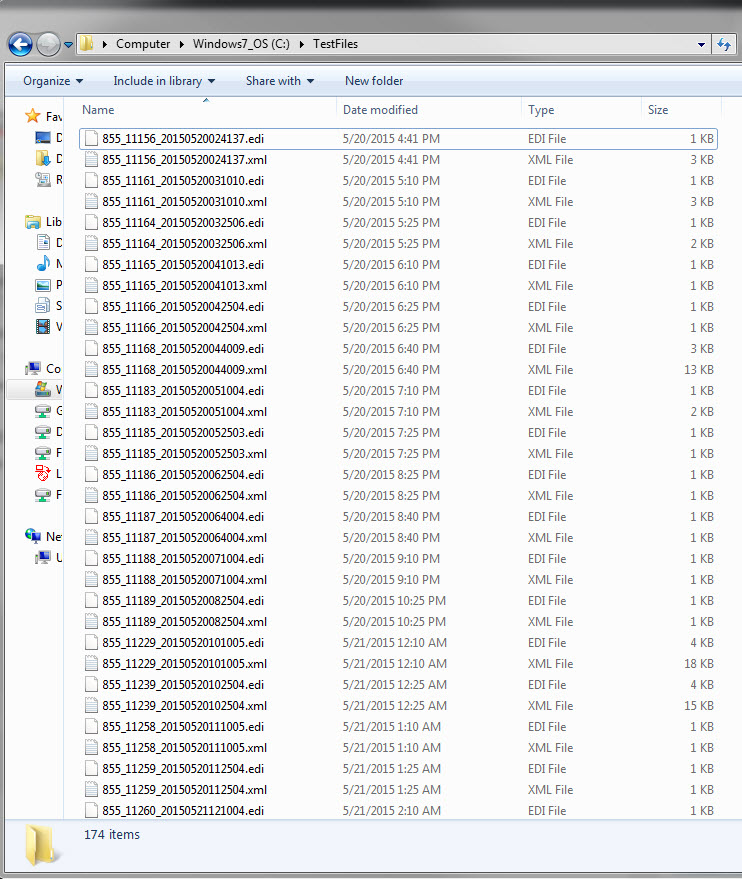
Before – could be thousands of files
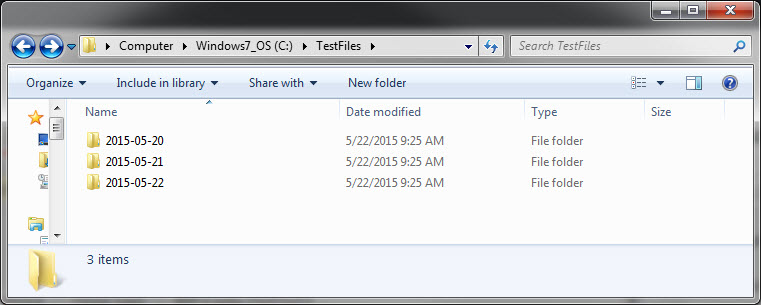
After – Files in neat subdirectories by date